RoboHead offers a powerful and robust form building tool to let you build exactly the form you need to make sure that your clients–whether internal or external–can submit the requests and projects they want with the information you require.
With so many options available, though, it’s easy to get overwhelmed and end up with an overly complex form.

The Benefits of a Simple Form
You want to capture as much detail as possible for your creative briefs, but if a form is complex, it can deter people from submitting the form. Similarly, a complex form can cause a user to rush through it, resulting in lower-quality input–giving the project manager more to do when they get the request.
By creating a simpler and more focused form, you’ll improve both user engagement and input, resulting in better submissions.
Ways to Simplify your Form
Don’t Ask the Same Question Twice
When building out a form for a bunch of different deliverables and used by a variety of clients, it can be tempting to create a fully built-out section for each project type. Let’s say you have two different print deliverable options–a poster and a banner. You could build out an entire section for each one, but most of the fields for these will ask the same questions of the requester.
Instead, build a Print section for the items that apply to both of these; you shouldn’t have to worry about reporting on two different fields for dimensions, paper type, and so on. This creates less work building the form to start with, but also means cleaner, simpler reports where one field can do the job of two, four, or more. This will also clean up your data and make it easier to report on after the work is done.
Customize your Form Labels
Sometimes, though, it’s impossible to avoid having fields that do the same job in different places. If you do have to do that, make sure to give the fields unique names. RoboHead allows you to have separate field titles for what the user sees and what you report on. For example, you could have two separate fields:
Form Display Label: Dimensions
Field Name: Poster Dimensions
Form Display Label: Dimensions
Field Name: Banner Dimensions
To the requester, both fields are labeled Dimensions, but when you go to report on them, the person creating the report will immediately know which dimension field is which and won’t have to guess–this means better reports built more quickly.
Guide your Users with Instructions
RoboHead offers an instructional field—a read-only text field that you can place on your form in as many spots as you want. If you have specific needs for a given section or field and you’re noticing that users are missing the mark with their submissions, add an Instructional Field to the form. Here, you can use formatting like font selection, size, color, and bold/italics to make the text as eye-catching as possible.
Best Practices for an Effective Form
Use RoboHead's Form Preview Feature
It can be easy to lose sight of the user experience when you’re building a form for your team. RoboHead’s Form Preview feature will let you see the form in action, just as your users would see it. You can also use this feature to preview your form for your team. Save a draft and put it in preview mode, and make sure that the form you’re building is the one your teams need.
Don’t Try to Account For Every Possible Situation
This one is for both you and your users. If you try to account for every situation, your form can quickly become so complex that it’s difficult to maintain. If the form has a million questions, your users may push back against using it, and instead resort to swinging by your desk or sending an email. Maintaining your form shouldn’t feel like lifting a car, and neither should using that form.
Use Rules Effectively
When creating rules for your form, avoid over-complication. Look for conflicts, and remember that all conditions of a rule must be fulfilled for it to execute. Keeping rules simple, and labeling them clearly, will make them easier to maintain both for yourself and anyone else you might want to include on form maintenance.
Have one primary form manager in your organization
Maintenance is a crucial part of ensuring your form stays effective for your team. That can mean updating them when your project types change, making sure the statuses available are being used, and things like that. However, that saying about “Too Many Cooks” holds true here. If you have more than one person maintaining forms, it can cause confusion if they try to pull the form in two different directions, removing fields one has added, overwriting rules, and things like that.
All form changes should, ideally, go through one individual within your organization to ensure that those changes make sense for the form and teams alike.
Track Form Changes
Similarly, when making changes to your form, it can be helpful to track the changes you’re making. That could be as simple as keeping a document that you update every time you make changes to the form, but the bigger your team, the more demands you’ll have for form changes. In that case, you may find it effective to devote a section of your Request form to internally-requested changes, as recommended by a long-time RoboHead customer.
Create a Form section for requested Form Changes, and set up a rule that ensures that only your internal users see it (reach out to RoboHead Support if you’d like us to guide you through this process). That will ensure that only the right users even see the option to request form changes in the first place, reducing potential confusion. By running form changes through your request form, you’ll have a record of the who, when, why and what of that change. Then you’re not left wondering six months later why you made a given change.
Reduce Friction with Alternative Submission Methods
In a perfect world, all of your users would fill out the form with all the information you need so that your team can get to work right away. But people are busy and they often don’t have all of the information at hand. Even the simplest form is going to put off certain users.
Let AI do the Heavy Lifting with RoboHead Spark
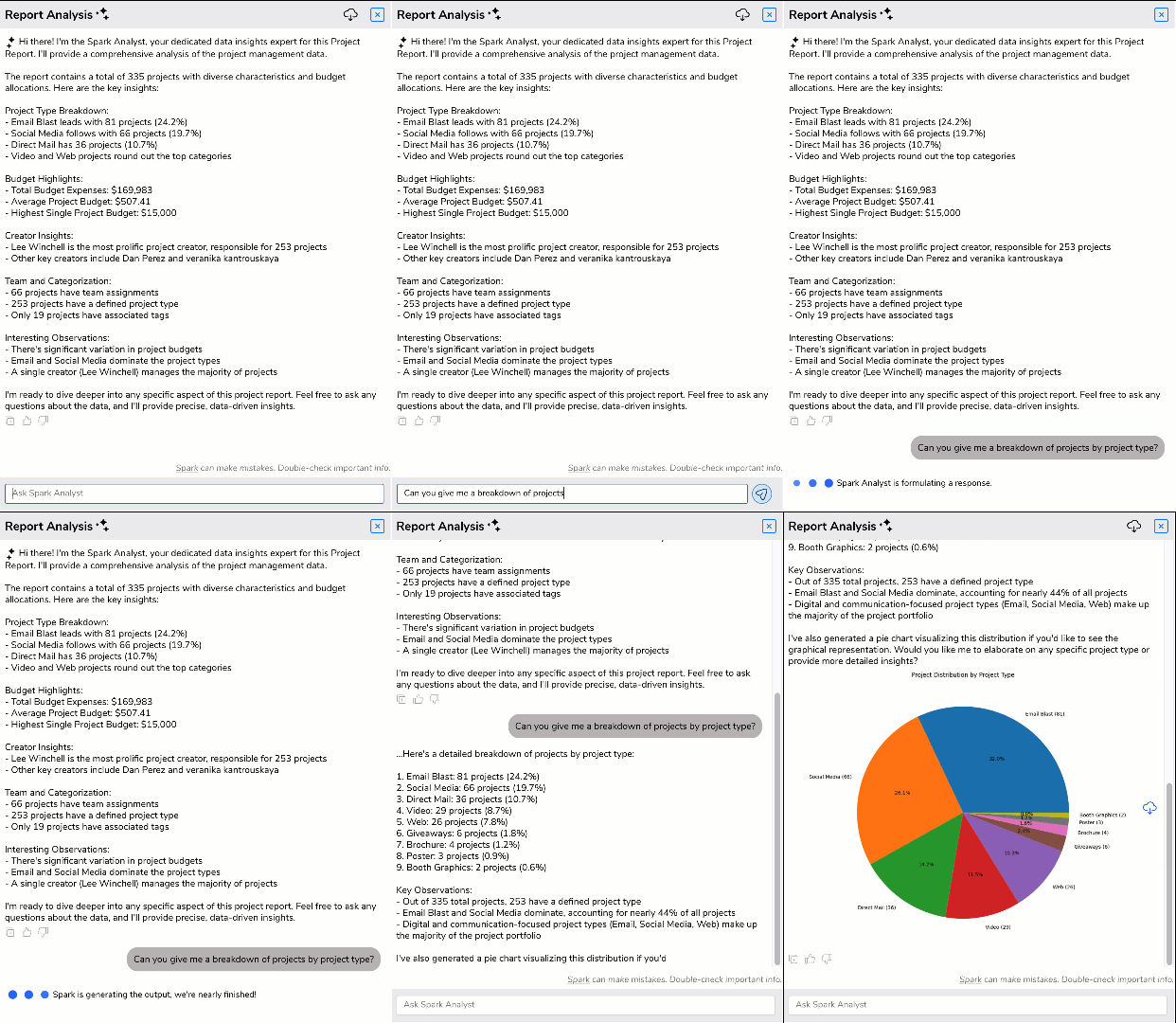
One way to account for this within RoboHead is to use the RoboHead Spark Easy Request option. When a user selects Easy Request from the request menu, this will start a conversation with our conversational AI guide, the Spark Assistant. The Assistant will help that user fill out your form through natural language conversation, asking them for all the important, required data and allowing them to submit a file to be used in making the request.
NOTE: These conversations are not used to train our AI for other clients and are never exposed to an external AI service, instead living entirely within the RoboHead system.
This Could’ve Been an Email
Using a chat agent doesn’t work for every organization, though, and RoboHead offers another option to account for that: Requests by Email. With this feature enabled, you can allow users to send emails to a specific request submission address with basic project information and attached files. Even if some of your users won’t engage with your form, you shouldn’t have to copy those emails into projects yourself—RoboHead can do it for you.
Call RoboHead Support for Help
RoboHead’s award-winning support team is here to help. We can help you optimize your form with general recommendations, best practice suggestions, streamline form rules, and even recovering your form if something just isn’t working for you. Email us at roboheadsupport@aquent.com, chat us directly from your RoboHead account, or call 888-ROBO-123.

About the Author
Eric is the customer support specialist for RoboHead. In addition to being a friendly face behind our 24/7 support, he is also responsible for creating training and product materials. In his spare time, Eric enjoys cooking for his friends, writing, fixing computers, and gaming. He is also the owner of an orange cat.